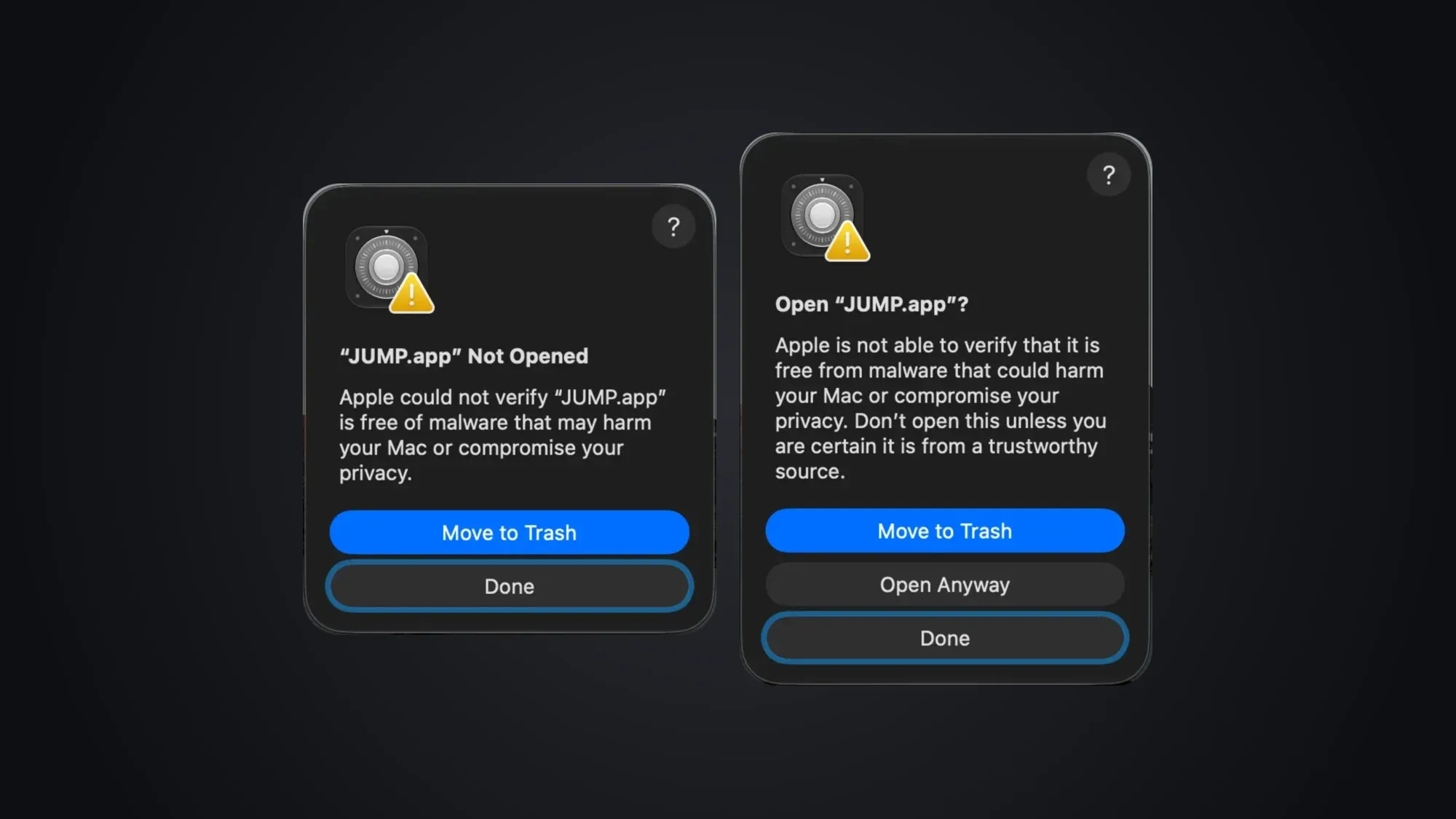
Some of the apps I publish, like JUMP and Netty, ship straight from GitHub. The first time you open them, macOS stops them with a warning that sounds scarier than it is. This guide explains why that happens and how to get past it in a minute.
Why macOS blocks the app
When you download an app from outside the App Store, macOS checks two things before running it:
- Signature: who made the app and that nobody changed it afterwards.
- Notarization: Apple scanned a copy of the app for known malware and approved it.
Notarization requires a paid Apple Developer account. Small and open-source projects often aren’t notarized yet, so macOS can’t check them on its own. It doesn’t mean the app is harmful. It means Apple hasn’t looked at it, and macOS asks you to confirm instead.
Since macOS Sequoia, the old trick of right-clicking the app and choosing Open no longer works. The confirmation now lives in System Settings.
Open it in four steps
The screenshots show JUMP, but the steps are the same for any app: only the name changes.
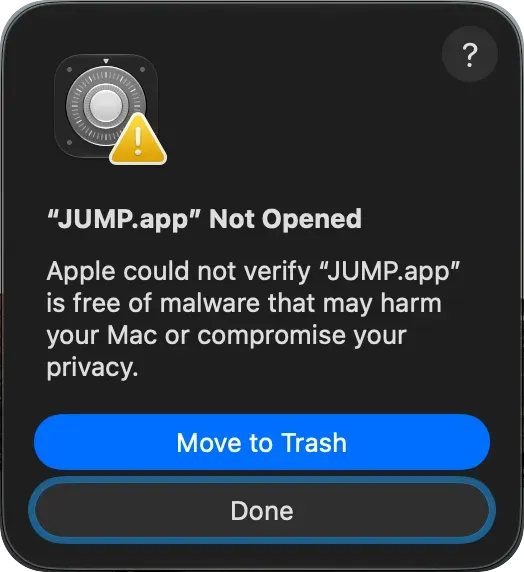
1. Open the app and choose Done
Open the app from Applications. macOS shows “Not Opened”. Choose Done, not Move to Trash.
2. Go to Privacy & Security
Open System Settings, go to Privacy & Security and scroll down to Security. Next to “… was blocked to protect your Mac”, click Open Anyway. macOS may ask for your password.
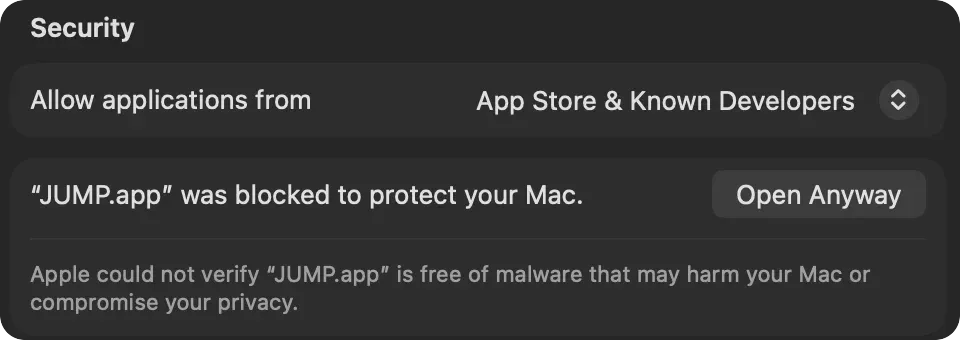
The button shows up for about an hour after you try to open the app. If it isn’t there, go back to step 1 and open the app again.
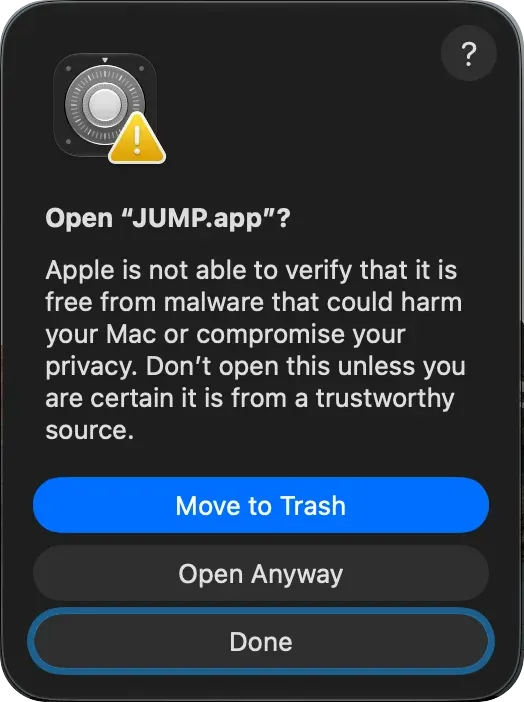
3. Confirm with Open Anyway
macOS asks one last time. Choose Open Anyway.
4. Done
macOS remembers your choice, so the app opens normally from now on. When you install a new version, it may ask again: repeat the same steps.
From the Terminal
If you’re comfortable with the Terminal, you can skip the dialogs. macOS marks every downloaded file as quarantined, and that mark is what triggers the check. This command removes it:
xattr -dr com.apple.quarantine "/Applications/JUMP.app"Change the path to the app you installed. It does the same as the steps above, so the same rule applies.
Is it safe?
The warning is there for a reason: it’s your only check on an app Apple hasn’t reviewed. Before you click Open Anyway, make sure that:
- You downloaded it from the official site or its GitHub releases, not from a mirror or a link someone sent you.
- You know who made it. With open-source apps you can also read the code.
If you have any doubt, choose Move to Trash. With apps you trust, these steps are all it takes.