The Wi-Fi icon in the menu bar answers one question: am I connected to a network? It doesn’t tell you whether the internet actually answers. A hotel login page, a router that lost its uplink or a connection that crawls all look the same: full bars.
I wanted a dot that answers the question that matters. Am I really online? Is the connection good? How fast is it?
That’s Netty.
What it does
Netty is a macOS menu bar app. Its icon is a dot that changes color with your connection:
| Color | Status | When |
|---|---|---|
| Green | Online | The internet answers and the connection is good. |
| Yellow | Degraded | Latency, jitter or packet loss crosses a threshold. |
| Red | Offline | A few checks in a row failed. |
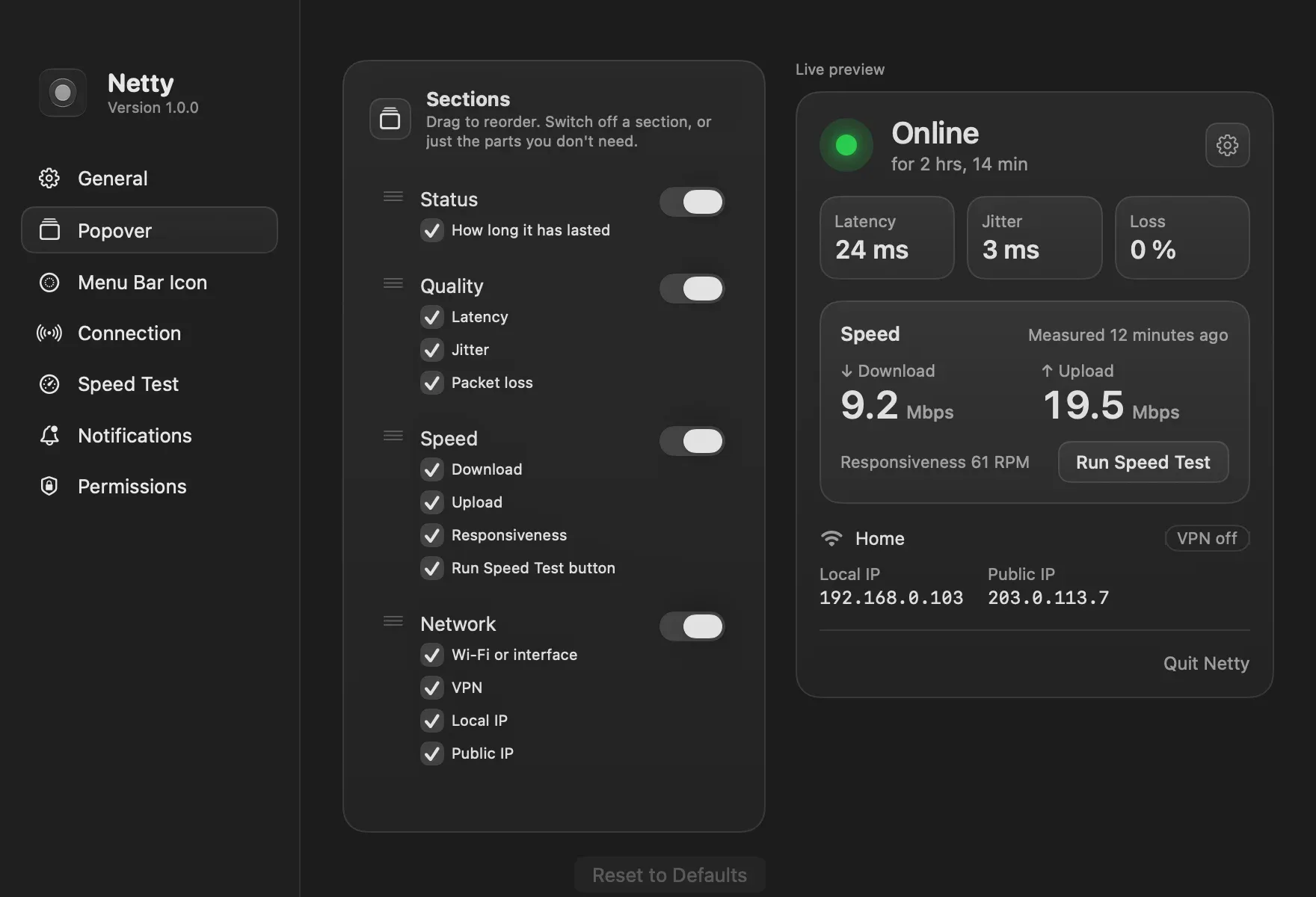
Click the dot and a popover shows latency, jitter, loss, the last speed test and your network: Wi-Fi name, Ethernet or hotspot, whether a VPN carries your traffic, and your local and public IP. You get a notification when the connection drops and when it comes back, with how long you were offline.
Almost everything can be changed: the rules for yellow and red, which sections the popover shows and in what order, what each click does, and the icon itself, in color or black and white, with SF Symbols or your own image.
Why I built my own
There are good apps that do this, like Netbar and Netdot, and Online Check does the “real internet” part well. I used them as references. But I wanted one that was free, open source and designed with the same care as the rest of macOS. Netty ships under GPL-3.0, like JUMP.
How it works under the hood
Real internet, not just a network. Netty asks Apple’s captive portal check, with Google’s as a fallback, whether the internet answers. Wi-Fi without internet or a login page counts as offline.
Quality from a TCP handshake. Every 10 seconds Netty opens a TCP connection to 1.1.1.1 and 8.8.8.8 and times the handshake. Latency, jitter and loss come from those samples. It also checks right away when the network changes or when you click the icon, so a drop or a recovery is confirmed at once instead of waiting for the next interval.
Speed with the tool macOS already has. The speed test uses Apple’s built-in networkQuality: download, upload and responsiveness. No servers of my own. It runs when you ask, or on a schedule that’s off by default and skips metered networks.
Nothing leaves your Mac. No analytics, no telemetry. The checks go to Apple, Google and Cloudflare, and the public IP is looked up only when you open the popover, at most every 5 minutes. Hide it and it’s never looked up.
Engineering decisions
The core is its own package. The rules that turn probe samples into a status live in NettyKit, a Swift package that’s tested without opening the app:
swift test --package-path Packages/NettyKit
NETTY_LIVE=1 swift test --package-path Packages/NettyKit
The second command also hits the real network and runs a speed test. Keeping it behind a flag means the normal suite is fast and doesn’t depend on your connection.
Reviewing the UI without opening it. Debug builds can render the popover, every Settings pane and every icon to PNG files and quit. I check a change in light and dark, in each status, without clicking through the app. The screenshots in this post came out of that.
The Wi-Fi name needs Location. macOS only shares the network name with apps that have Location access. Netty asks for it with its reason, never reads your location, and still works if you say no: it just shows “Wi-Fi”.
Try it
Netty needs macOS 26 or later. Download it from its website or from GitHub, or install it with Homebrew:
brew install --cask alvaldes/tap/nettyIt isn’t notarized by Apple yet, so macOS blocks it the first time. This guide walks you through opening it.
If something breaks, or you have an idea to make it better, open an issue in the repository.